How to make an iPhone easier for an elderly parent
Every setting below is free, reversible, and takes under a minute. The paths are current for recent iOS versions.
By Selena H. · Last checked October 13, 2026 · How we keep pages current
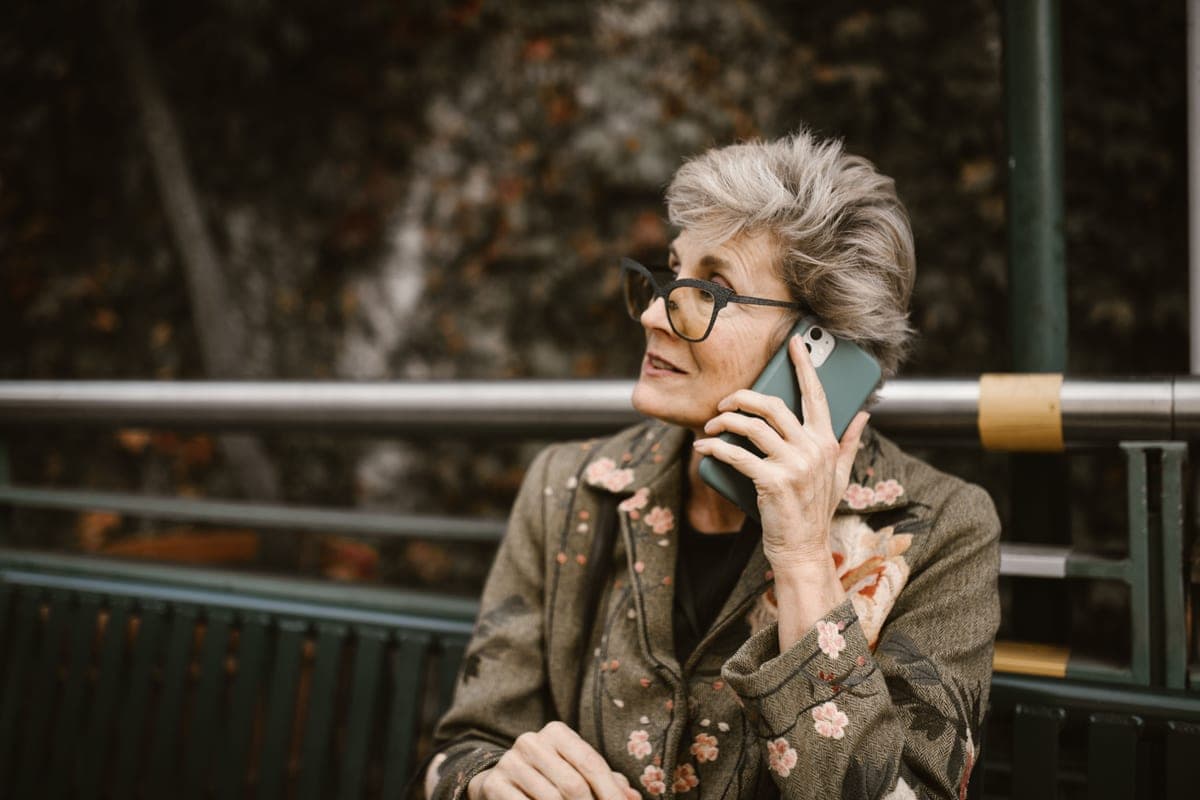
Open Settings and work down this list. The first four steps fix most complaints; the rest are for specific problems. Apple moves things between iOS versions, so if a path does not match exactly, use the search box at the top of Settings and type the name of the setting.
Some links on this page go to Amazon. If you buy something, we may earn a small commission at no extra cost to you — it never changes which products we pick or the order they appear in. Full disclosure.
The settings, in Settings order
- Settings > Display & Brightness > Text Size — drag right two or three steps. Then turn on Bold Text on the same screen.
- Settings > Accessibility > Display & Text Size > Larger Text — turn on Larger Accessibility Sizes for text bigger than the standard maximum.
- Settings > Accessibility > Display & Text Size > Increase Contrast — makes buttons look like buttons rather than plain words.
- Settings > Sounds & Haptics — drag the ringer slider to maximum and turn on Change with Buttons OFF, so the volume cannot be knocked down by accident.
- Settings > Accessibility > Touch > Touch Accommodations — turn on Hold Duration and set about 0.3 seconds. This stops a resting fingertip registering as a tap.
- Settings > Accessibility > Touch > Call Audio Routing > Speaker — answers calls on speakerphone automatically, which helps with both hearing and holding.
- Settings > Accessibility > Touch > Back Tap — set Double Tap to Home if the home gesture is a problem.
- Settings > Display & Brightness > Auto-Lock — set to 5 minutes so the screen does not go black mid-task.
- Settings > Accessibility > Motion > Reduce Motion — turn on to stop the zooming animations that some people find disorienting.
- Settings > Accessibility > Assistive Access — the big one. It reduces the entire phone to a handful of very large buttons: Calls, Messages, Camera, Photos, Music. Turn it on only if the full phone is genuinely too much.
- Settings > Face ID & Passcode — if Face ID keeps failing, set a simple passcode they can remember, and write it somewhere the family can find.
- Settings > Phone > Silence Unknown Callers — turn on to cut cold and scam calls. Warn them that the doctor's office may be silenced too.
Quick picks
| # | Product | Best for | Score | Price |
|---|---|---|---|---|
| 1 | 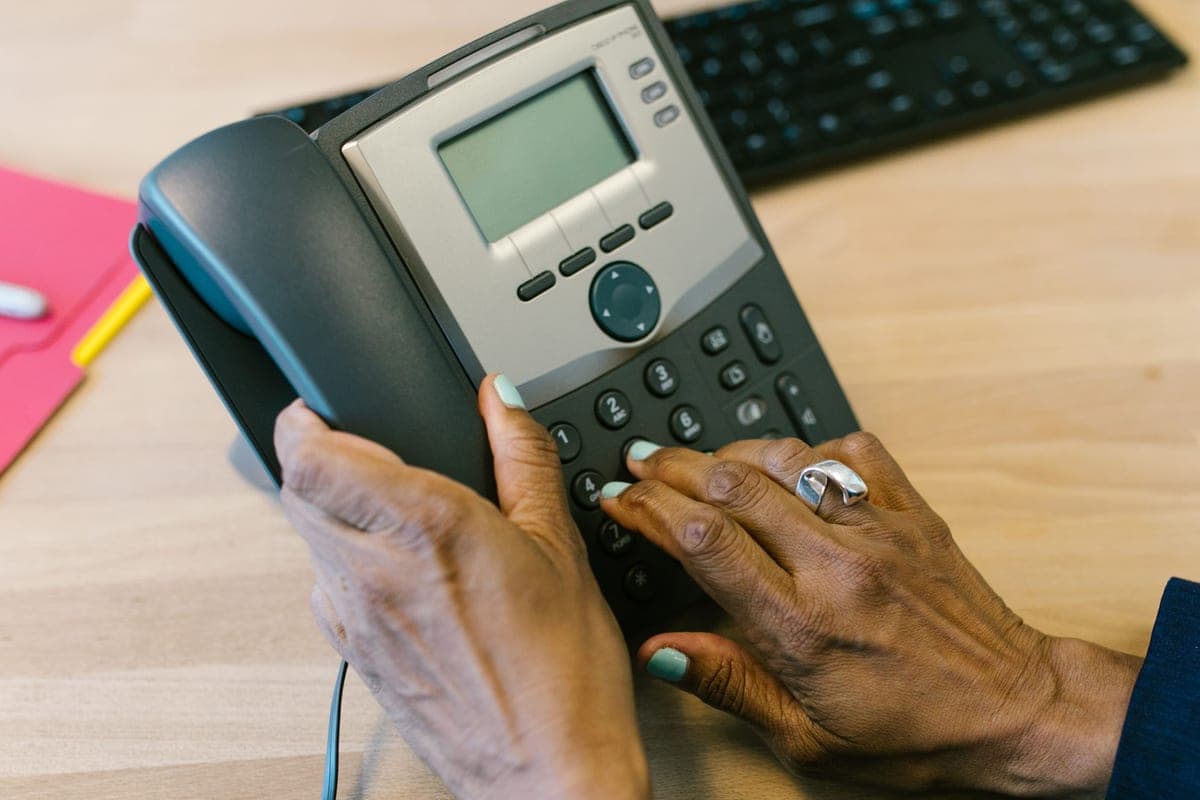 Easyfone T6 Big Button PhoneIf Assistive Access is still too much, a four-picture-key phone is the honest next step. | When the iPhone has lost | 8.2 | Check price on Amazon #ad Prices change daily, so we send you to check today's. How we earn |
| 2 | 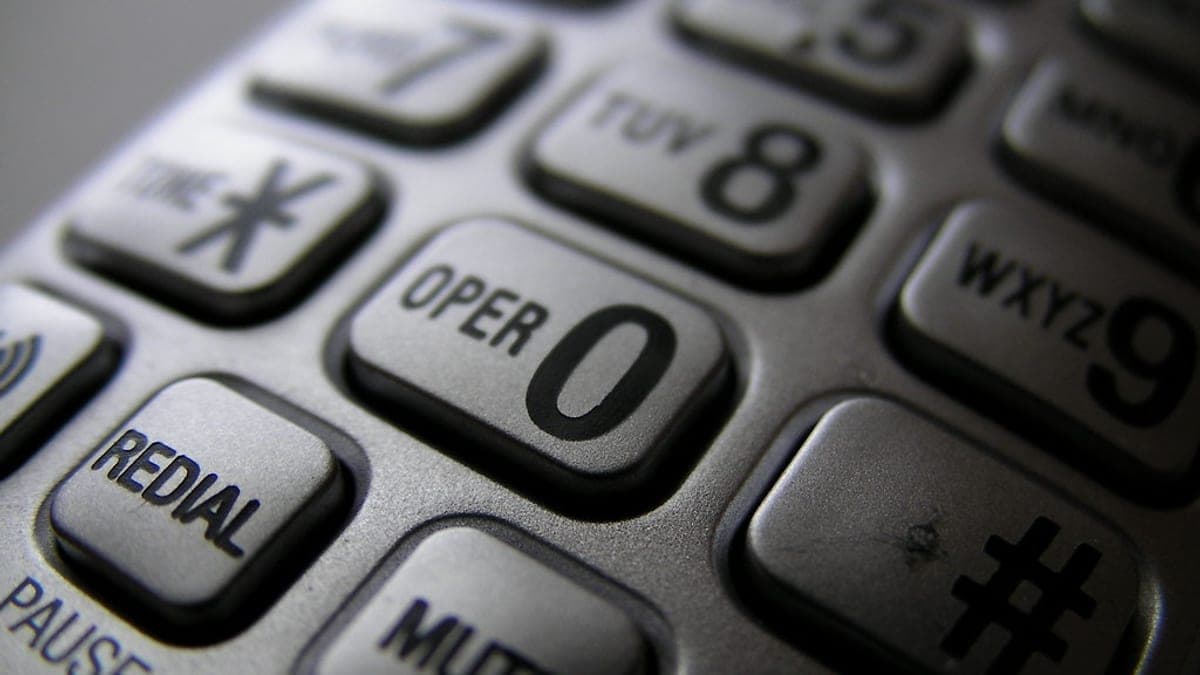 VTech SN5147 Amplified Corded/Cordless PhonePair the iPhone with an amplified home phone and most hearing complaints disappear. | Calls at home that can actually be heard | 8.6 | Check price on Amazon #ad Prices change daily, so we send you to check today's. How we earn |
Tap any row to jump to the full write-up. The price button goes to Amazon.
How we picked
We don’t run a product lab. Every pick here is chosen by reading the things that actually tell you whether something works for weak hands, poor eyesight or shaky fingers: the manufacturer’s own specifications, the retailer listing, the measurements and weights, and what owners report in their reviews — especially the one-star ones. We read the complaints before the praise.
Prices change constantly, so we send you to Amazon to see today’s price rather than printing a number that goes stale. More about how we choose.
The picks in full
1. Best for when the iphone has lost
Easyfone T6 Big Button Phone
Easyfone · 8.2/10 on our rubric
#ad Prices change daily, so we send you to check today's. How we earn
If Assistive Access is still too much, a four-picture-key phone is the honest next step.
Some people do not get on with a touchscreen at all, and no amount of settings changes that. Four picture keys and an SOS button is the floor, and for many households it is where the frustration ends.
Good
- Four picture keys
- Physical keys and SOS
- Charging dock
Watch out for
- Calls only, essentially
- Loses photos and messaging
| Type | Big-button bar phone |
|---|---|
| Dialing | Four picture keys |
| Emergency | Rear SOS key |
| Charging | Dock |
2. Best for calls at home that can actually be heard
VTech SN5147 Amplified Corded/Cordless Phone
VTech · 8.6/10 on our rubric
#ad Prices change daily, so we send you to check today's. How we earn
Pair the iPhone with an amplified home phone and most hearing complaints disappear.
An iPhone at maximum volume still cannot match a phone designed for hearing loss. Many households end up with both: the iPhone for out, the amplified phone for in.
Good
- Up to 50 dB amplification (manufacturer listing)
- Photo dial keys
- Works in a power cut
Watch out for
- Needs a landline
- Another device to keep charged in the cordless handsets
| Type | Amplified home phone |
|---|---|
| Amplification | Up to 50 dB (manufacturer listing) |
| Dialing help | Photo keys |
| Extras | Call blocking |
What Assistive Access actually does
Assistive Access is the most significant accessibility feature Apple has added for this audience, and almost nobody knows it exists. Turning it on replaces the iPhone's whole interface with a small set of very large, high-contrast buttons. The person chooses from a handful of apps, laid out in a grid or a list, with no settings reachable and no way to end up somewhere unexpected.
You choose which apps appear, and you can restrict Messages to a photo-based contact list, so sending a message is picking a face. Exiting requires a passcode, so it cannot be left by accident.
It is a big change and it should be a conversation, not a surprise. For someone who has been avoiding their phone, it can be the thing that brings them back to it.
Make the ringer actually loud
- Settings > Sounds & Haptics > Ringtone — choose a classic tone like Opening or Radar. Modern subtle tones are quiet by design.
- On the same screen, drag Ringtone and Alert Volume to maximum.
- Turn Change with Buttons off, so the side buttons cannot lower the ringer by accident in a pocket.
- Check Do Not Disturb and any Focus modes are off — these silence calls and are switched on accidentally all the time.
- Test it from another room. The specification is irrelevant; whether they hear it from the kitchen is the test.
If the hands are the problem, not the eyes
Touch Accommodations with a hold duration is the setting that fixes most tremor-related frustration — it means the phone waits briefly before registering a touch, so a wobble does not become a wrong press.
Beyond settings, a case with a hand strap or a pop-out grip does more than any software for someone who struggles to hold a large glass phone. If the phone is still being dropped, a flip phone is a legitimate answer rather than a defeat.
Questions people ask
▸How do I make the text bigger on an iPhone?
Settings > Display & Brightness > Text Size, then drag right. For larger sizes still, turn on Larger Accessibility Sizes under Settings > Accessibility > Display & Text Size > Larger Text.
▸How do I make an iPhone ring louder?
Settings > Sounds & Haptics: drag Ringtone and Alert Volume to maximum, turn Change with Buttons off, and pick a classic ringtone. Then check no Focus or Do Not Disturb mode is on.
▸What is the simplest iPhone setup?
Assistive Access, in Settings > Accessibility. It reduces the phone to a few very large buttons for calls, messages, camera and photos, with no settings reachable and a passcode required to leave.
▸How do I stop accidental taps?
Settings > Accessibility > Touch > Touch Accommodations, then turn on Hold Duration and set roughly 0.3 seconds. The phone will wait that long before registering a touch, which filters out wobbles.
Sources
Read next
Guide
How to simplify a smartphone for someone over 75
The settings that make an ordinary phone behave, in the order worth doing them.
Read the guide →
Best overall phone
Best phones for seniors that are genuinely easy to use
Our main phone roundup: flip phones, big-button handsets and the one with photo dialing, sorted by constraint.
Read the guide →
Best big-button keys
Best large button cell phones for seniors
Phones with physical keys big enough to find without looking, including two with spoken digits.
Read the guide →
Best amplified phone
Best amplified phones for hard of hearing seniors
Amplified home phones ranked by boost, ringer volume and how usable the keypad is.
Read the guide →