How to simplify a smartphone for someone over 75
Most people are twenty minutes of settings away from being happy with the phone already in the drawer.
By Selena H. · Last checked October 13, 2026 · How we keep pages current

Work through these twelve steps in order and an ordinary smartphone becomes a simple one. The whole job takes about twenty minutes, costs nothing, and is reversible. Do it with the person rather than for them, and stop at whichever step they are happy with.
The principle behind all of it: remove choices, enlarge what is left, and make nothing happen by accident. Every step below does one of those three things.
Some links on this page go to Amazon. If you buy something, we may earn a small commission at no extra cost to you — it never changes which products we pick or the order they appear in. Full disclosure.
The twelve steps, in order
- Turn the text size up two or three steps, and switch on bold text. Both are in Display settings on iPhone and Android.
- Delete or hide every app that will not be used. Fewer icons is the single biggest improvement on this list.
- Put the four or five apps that are used on the first screen, large, in the same positions every time.
- Turn off every notification except calls and messages from family. Meaningless beeps cause anxiety and prompt random tapping.
- Set the screen to stay on longer — two or five minutes — so it does not go black mid-task.
- Turn the ringer and alert volume to maximum, and choose a ring tone that sounds like a telephone rather than a tune.
- Switch off auto-rotate so the screen does not flip sideways when the phone is held at an angle.
- Add family to favorites, with photographs, so calling is a press on a face.
- Turn on the simplified launcher if the phone has one: Easy Mode on Samsung, Simple Mode on some Android phones. On an iPhone, Assistive Access reduces the whole phone to a few large buttons.
- Disable automatic app downloads and in-app purchases so nothing appears unannounced.
- Enable a longer press duration for touch, which stops a resting fingertip registering as a tap. It is called Touch Accommodations on iPhone and Touch & hold delay on Android.
- Write the phone's own number on a label on the back. It gets asked for constantly.
Quick picks
| # | Product | Best for | Score | Price |
|---|---|---|---|---|
| 1 | 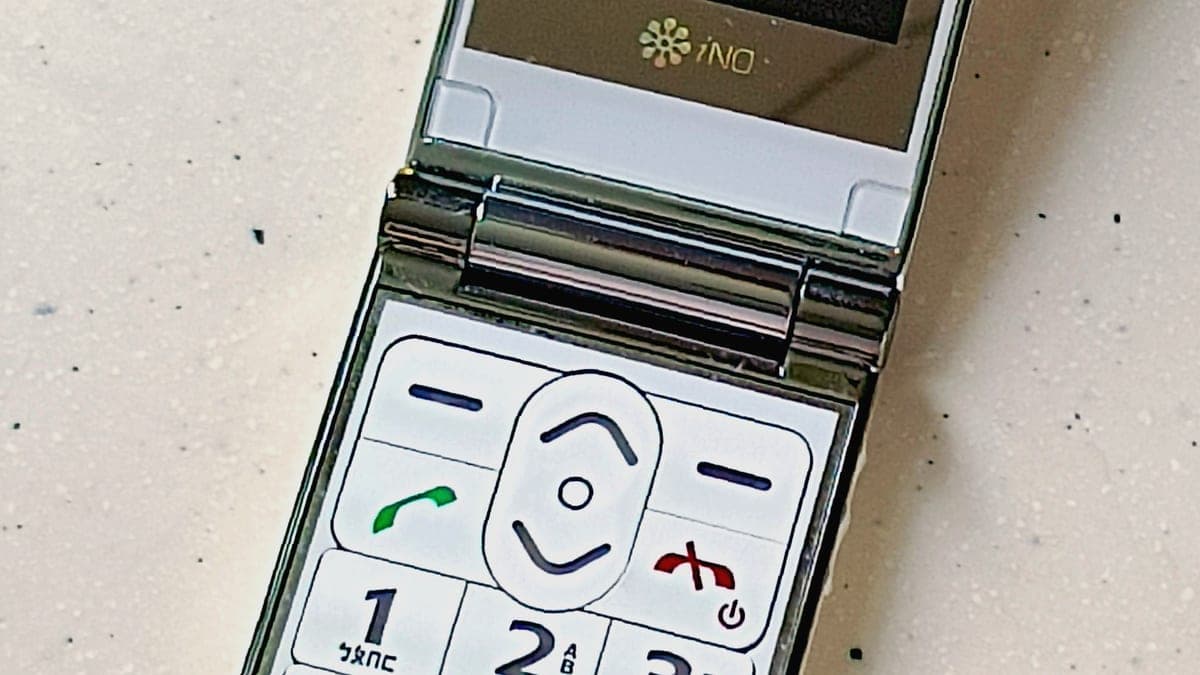 Easyfone Prime-A1 Pro Flip PhoneThe next step when a simplified smartphone still is not working: photo dialing and real keys. | When settings are not enough | 8.5 | Check price on Amazon #ad Prices change daily, so we send you to check today's. How we earn |
| 2 | 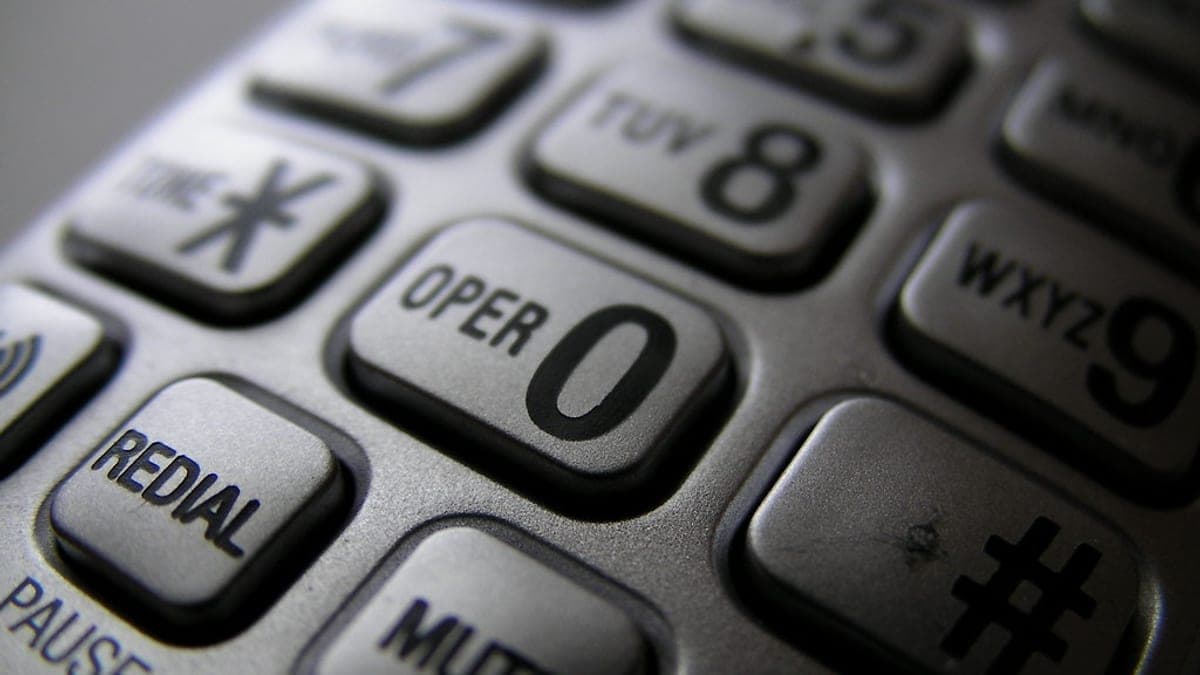 VTech SN5147 Amplified Corded/Cordless PhoneNo smartphone setting can match 50 dB of amplification on a home phone. | When hearing is the real problem | 8.6 | Check price on Amazon #ad Prices change daily, so we send you to check today's. How we earn |
Tap any row to jump to the full write-up. The price button goes to Amazon.
How we picked
We don’t run a product lab. Every pick here is chosen by reading the things that actually tell you whether something works for weak hands, poor eyesight or shaky fingers: the manufacturer’s own specifications, the retailer listing, the measurements and weights, and what owners report in their reviews — especially the one-star ones. We read the complaints before the praise.
Prices change constantly, so we send you to Amazon to see today’s price rather than printing a number that goes stale. More about how we choose.
The picks in full
1. Best for when settings are not enough
Easyfone Prime-A1 Pro Flip Phone
Easyfone · 8.5/10 on our rubric
#ad Prices change daily, so we send you to check today's. How we earn
The next step when a simplified smartphone still is not working: photo dialing and real keys.
If you have worked through the list above and the phone is still a struggle, this is the usual next purchase. Photo speed dial and spoken digits do what no setting on a smartphone can.
Good
- Photo speed dial
- Spoken digits
- Physical keys and a charging dock
Watch out for
- Much less capable than a smartphone
- Needs initial setup
| Type | Flip phone |
|---|---|
| Dialing help | Photos and spoken digits |
| Charging | Dock |
| Network | 4G, unlocked |
2. Best for when hearing is the real problem
VTech SN5147 Amplified Corded/Cordless Phone
VTech · 8.6/10 on our rubric
#ad Prices change daily, so we send you to check today's. How we earn
No smartphone setting can match 50 dB of amplification on a home phone.
If the complaint after simplification is still "I can't hear them", the fix is hardware. An amplified home phone solves it immediately for calls taken at home.
Good
- Up to 50 dB amplification (manufacturer listing)
- Very loud ringer
- Photo speed-dial keys
Watch out for
- Landline only
- Will not help with mobile calls
| Type | Amplified home phone |
|---|---|
| Amplification | Up to 50 dB (manufacturer listing) |
| Extras | Answering system, call blocking |
| Power cut | Corded handset works |
The three mistakes families make
The first is doing the setup without the person. If they do not see where things went, every change becomes something that happened to them, and the first problem turns into a phone call to you rather than a shrug.
The second is simplifying too hard. Deleting the camera because "she never uses it" removes the thing that gets grandchildren photographed. Ask before you remove; it takes a second.
The third is doing it once and never again. A software update moves things, eyesight changes, confidence changes. Revisit the setup every six months or so, and expect to remove more than you add.
When to stop simplifying and change the phone
There is a point where settings stop being enough. If the person cannot reliably find the home screen, if an accidental press still lands them somewhere unfamiliar every week, or if the phone causes visible anxiety, the device is wrong rather than the configuration.
At that point, a phone with physical keys and a fixed menu is a better answer than more tinkering. Our roundup of simple phones covers the options, and the dementia-specific page covers photo dialing.
What this does not fix
Hearing. No setting makes a phone's earpiece meaningfully louder than its hardware allows. If calls are hard to hear, you need a phone rated M4/T4 for hearing aids, or an amplified home phone.
Grip. A large glass slab is hard to hold with arthritic hands however it is configured. A case with a strap, or a flip phone, solves that where software cannot.
Questions people ask
▸How do you make a smartphone easier for an elderly person?
Turn the text size up, delete unused apps, put four apps on the first screen, silence every notification except calls, and switch on the phone's simplified mode — Easy Mode on Samsung, Assistive Access on iPhone.
▸What is Assistive Access on iPhone?
An Apple accessibility mode that reduces the whole phone to a few very large buttons for calls, messages, photos, camera and music. It is the most thorough simplification available without changing phones.
▸Does Samsung have a simple mode?
Yes. Easy Mode, in Display settings, enlarges icons and text, simplifies the home screen and increases contrast. It is a single toggle and it is reversible.
▸Should I delete apps or just hide them?
Hide first. Hiding is reversible and avoids arguments about something that turns out to matter. Delete only what the person agrees they will never use.
Sources
Read next
Guide
How to make an iPhone easier for an elderly parent
Exact Settings paths for text size, volume, Assistive Access and accidental-touch protection.
Read the guide →
Best overall phone
Best phones for seniors that are genuinely easy to use
Our main phone roundup: flip phones, big-button handsets and the one with photo dialing, sorted by constraint.
Read the guide →
Guide
What to look for in a phone for an older adult
The buying checklist: what to verify before spending, and the traps in the listings.
Read the guide →
Best for memory loss
Best phones for someone living with dementia
Picture-dialing phones and locked-down handsets that keep working as memory changes.
Read the guide →